TRON Wallet Desk: Turn Python Wallet Scripts into a Desktop App
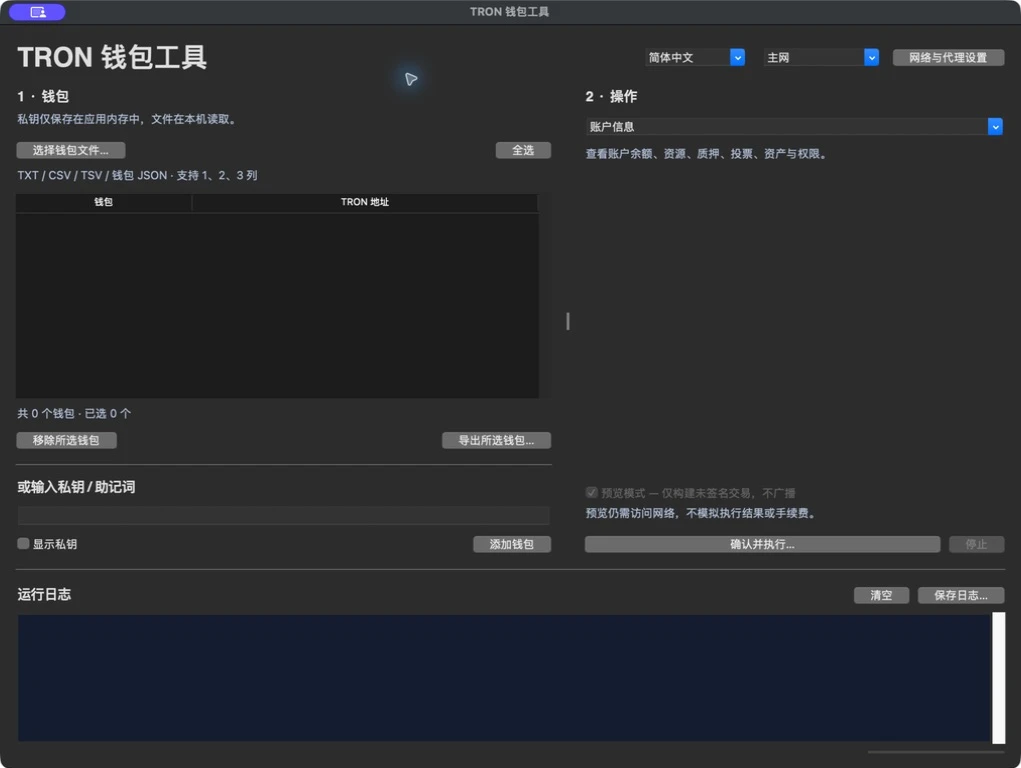
Checking a TRON account, previewing a transfer, and managing staked resources often means switching between a block explorer and several terminal commands. In my local wallet_script project, those operations now share a desktop interface: TRON Wallet Desk.
The app uses Python, Tkinter, and TronPy. It supports Chinese and English, imports multiple wallets, and places an explicit review step before execution. This article walks through the implementation and its operational boundaries, with a small amount-conversion example that runs independently of the project.
The project is private; this is a development walkthrough, not a public software release. Commands involving project files assume you already have that directory. The source review and checks described here were completed on September 21, 2026.
The cover is a real screenshot of the desktop app with an empty wallet list. No private key, wallet balance, or account history is shown.
1. What Wallet Desk brings together
The interface has three working areas: wallets on the left, the selected operation on the right, and the activity log below. Network selection, language selection, and proxy settings sit at the top.
| Area | Supported operations |
|---|---|
| Account inspection | Balances, Bandwidth, Energy, staking, votes, assets, and permissions |
| Transfers and activation | TRX transfers, USDT transfers, account creation, and conditional initial USDT funding |
| Stake 2.0 | Stake, unstake, withdraw eligible unstaked TRX, delegate resources, and undelegate resources |
| Voting | Replace vote allocations and claim accrued voting rewards |
| Offline tools | Derive Ethereum, TRON, and Solana addresses; search for a vanity TRON address |
The address-derivation feature does not make this a general multichain transaction app. The transaction scripts operate on TRON. Likewise, querying account permissions does not provide a complete multisignature workflow.
Two defaults matter before using the project:
- Desktop: transaction operations default to unsigned dry runs.
- Command line: transaction scripts default to mainnet and broadcast unless
--dry-runis supplied.
All transaction examples below explicitly use Nile and --dry-run.
2. Keep the interface separate from transaction logic
The desktop layer reuses the existing scripts rather than implementing a second set of blockchain operations.
| File | Responsibility |
|---|---|
wallet_app.py |
Tkinter forms, review dialog, wallet selection, activity log, and batch control |
wallet_app_core.py |
Wallet parsing, address matching, configuration validation, and CLI argument construction |
wallet_app_worker.py |
Receive one operation through stdin and dispatch it to the appropriate script |
wallet_app_i18n.py |
Translation catalog and language switching |
tron_common.py |
Shared network configuration, amount validation, local signing, and receipt handling |
tron_transfer.py, tron_activate.py, tron_stake.py |
Transaction-specific operations |
tron_info.py, ptop.py, tron_create.py |
Account queries, address derivation, and offline key generation |
The flow is:
Form values + selected wallets
        -> validate the full batch
        -> review operation
        -> background thread
        -> one worker subprocess per wallet, sequentially
        -> script -> RPC / local computation
        -> event queue -> activity log
The worker receives its request through a pipe. Signing keys are not placed in its command-line arguments. Worker output returns through a queue, and the Tk event loop updates the interface. A slow RPC call therefore does not need to block the whole window.
Sequential execution also gives failures a clear boundary. The batch stops at the first error; earlier operations may already have completed. This is not an all-or-nothing batch transaction.
3. Start the desktop app
On macOS, the project includes setup_desktop.sh:
cd wallet_script
./setup_desktop.sh
.venv-desktop/bin/python wallet_app.py
The setup script downloads a project-local Python 3.13 runtime and creates .venv-desktop. Its runtime is stored in .python-desktop; keep that directory with the environment. It does not require Homebrew or replace the system Python.
The bundled Wallet Desk.app and Wallet Desk.command are launchers for the project directory. Moving only the .app into Applications would leave its supporting files behind; use an alias if you want a shortcut elsewhere.
For the English interface:
.venv-desktop/bin/python wallet_app.py --language en
The default is Simplified Chinese. Switching language in the window preserves wallets, selections, and entered parameters. Each new launch defaults to Chinese unless the flag is supplied. Raw RPC output and JSON keep their original format.
For CLI work, the project’s README recommends Python 3.10–3.13:
python3 -m venv .venv
. .venv/bin/activate
python -m pip install -r requirements.txt
python tron_transfer.py --help
The dependency file pins TronPy to 0.6.2. A desktop installation also needs a working Tk runtime; the project launcher checks for an old macOS Tk version that can produce an empty window.
4. Import wallets and review a batch
The importer accepts TXT, CSV, TSV, and wallet JSON. Text rows can contain a key alone, a key with a TRON address, or a third column containing an Ethereum address or a label. Column order can vary, and headers, comments, and duplicate entries are handled.
The important check is that a supplied address must match its key. If any row is invalid, the entire file import fails. This prevents a partially imported file from looking like a complete wallet list. A mnemonic mixed with whitespace-separated columns must be quoted; a CSV field is another option.
For an initial desktop run:
- Select Nile and use a wallet intended for that test network.
- Import the wallet file and select the intended row.
- Start with Account information, then inspect the returned balances and resources.
- For a transfer preview, select the operation, recipient, asset, and amount while leaving dry run enabled.
- Open Review & run… and check the network, selected senders, destination, and amount.
The amount is per selected wallet. Selecting three wallets and entering 1 TRX prepares three separate 1 TRX operations, for a total intended transfer amount of 3 TRX before fees. It does not divide 1 TRX across the selection.
A live desktop operation requires disabling dry run and choosing Sign & broadcast in the review dialog. The Stop button can interrupt the worker and prevent later batch items, but it cannot reverse a transaction already submitted to the network.
5. Understand what a dry run proves
The shared submission function builds a transaction first. With --dry-run, it prints the unsigned transaction and returns before signing or broadcasting. Without that flag, it signs locally, prints the transaction ID, broadcasts, and waits for a solidified receipt. This follows the stages described in the TronPy transaction documentation.
A dry run still makes network queries. It is not a contract execution simulation, a fee estimate, or a guarantee that the sender has sufficient resources.
From the project CLI environment, this example asks for a valid Nile recipient address and then prompts for the test sender’s key without putting it in the command itself:
printf 'Nile recipient address: '
IFS= read -r TRON_TEST_RECIPIENT
env -u TRON_PRIVATE_KEY python tron_transfer.py - "$TRON_TEST_RECIPIENT" trx 1 \
  --network nile --dry-run
The - argument normally reads TRON_PRIVATE_KEY or falls back to a hidden prompt. Here, env -u removes that variable for this command so the hidden prompt is used. The recipient must be an address you intend to use on Nile; no example destination is silently substituted.
For a test-token preview, the project requires an explicit token contract:
printf 'Nile test-token contract: '
IFS= read -r TRON_TEST_TOKEN
env -u TRON_PRIVATE_KEY python tron_transfer.py - "$TRON_TEST_RECIPIENT" usdt 1 \
  --network nile --usdt-contract "$TRON_TEST_TOKEN" --fee-limit 100 --dry-run
Here, usdt selects the project’s TRC-20 transfer path; the supplied test contract is not claimed to be an official Tether deployment. The script reads the token’s decimals from its contract.
The --fee-limit 100 setting is a project-level TRX amount converted to the chain’s Energy budget field. It is not a predicted fee or a cap on every kind of network charge. TRON’s FeeLimit documentation explains the distinction.
6. Activation, staking, and delegation are different operations
Generating a key creates an address locally. Creating the account on-chain is a separate step. The project’s TRX activation path submits AccountCreateContract for an inactive recipient; it does not also send a spendable TRX balance. TRON documents activation through CreateAccount.
The project’s USDT activation option means: activate the TRON account if necessary, then send an initial token amount if the recipient’s USDT balance is zero. It is not a separate USDT activation protocol. Activation and token funding are two transactions, so the first can succeed even when the second fails.
For resources, the distinctions are equally important:
| Operation | Meaning in this project |
|---|---|
| Stake | Commit TRX through Stake 2.0 for Energy or Bandwidth |
| Unstake | Begin the network’s withdrawal waiting period |
| Withdraw unstaked TRX | Withdraw amounts that have become eligible |
| Delegate | Share resources backed by existing stake |
| Undelegate | Reclaim delegated resources while leaving the underlying TRX staked |
| Claim | Withdraw accrued voting rewards, without unstaking principal |
The unstaking sequence is documented in TRON’s account resource APIs. Delegation amounts refer to TRX worth of stake, not a number of Energy units. A custom delegation lock is measured in blocks, and locked resources cannot be reclaimed before expiry; see TRON resource delegation.
The voting command replaces the complete allocation rather than adding to the previous vote counts. The review screen must therefore show the whole intended allocation.
7. A reusable detail: convert amounts without floats
The project keeps transaction amounts as decimal text until converting them to integer atomic units. For TRX, 1 TRX equals 1,000,000 sun, as specified in the TRON fee documentation.
The following standalone example uses the conversion function from tron_common.py. Save it as amount_demo.py; it needs only Python’s standard library and makes no network calls.
import re


def units(value, decimals=6, maximum=2**63 - 1):
    """Convert decimal text to atomic units without float rounding."""
    if not isinstance(decimals, int) or not 0 <= decimals <= 36:
        raise ValueError("unsupported token decimals")
    if not re.fullmatch(r"[0-9]+(?:\.[0-9]+)?", value):
        raise ValueError("amount must be a positive decimal number")
    whole, _, fraction = value.partition(".")
    fraction = fraction.rstrip("0")
    if len(fraction) > decimals:
        raise ValueError(f"amount supports at most {decimals} decimal places")
    amount = int(whole) * 10**decimals + int(fraction.ljust(decimals, "0") or "0")
    if not 0 < amount <= maximum:
        raise ValueError("amount must be positive and within the asset's integer range")
    return amount


if __name__ == "__main__":
    for text in ["1.5", "0.000001", "1.0000000"]:
        print(f"{text} TRX -> {units(text)} sun")
    try:
        units("0.0000001")
    except ValueError as error:
        print("Rejected:", error)
Run:
python3 amount_demo.py
Expected output:
1.5 TRX -> 1500000 sun
0.000001 TRX -> 1 sun
1.0000000 TRX -> 1000000 sun
Rejected: amount supports at most 6 decimal places
Trailing zeroes do not change the amount, but an extra nonzero decimal place is rejected. This avoids silently rounding a transaction amount through a floating-point conversion. The output above was checked locally.
8. Key handling, logs, and failure recovery
The desktop app masks key entry and keeps imported wallets in memory. It does not automatically persist them as a wallet database. Requests pass keys to workers through stdin; the worker exposes the key to its own process through an environment variable for the existing CLI helper. This reduces command-line exposure, but it is not hardware-wallet isolation or an encrypted keystore.
Exporting a wallet creates a plaintext JSON key file with owner-only permissions and refuses to overwrite an existing file. Generated wallets prompt for saving. If that dialog is cancelled, export the wallet before closing or its key can be lost.
The activity log redacts known signing keys, configured API keys, and proxy credentials. Still review a log before sharing it: transaction IDs, account addresses, and network responses can reveal operational information.
The network settings accept HTTP and SOCKS proxy URLs. An explicit proxy is applied to RPC calls for that operation; offline derivation and vanity generation do not need an RPC connection. RPC providers and proxies can observe network requests, even though signing stays local.
The scripts do not automatically retry transactions. A receipt timeout does not establish that submission failed. Check the printed transaction ID before deciding what to do next, particularly after a stopped or partially completed batch.
9. Verification and troubleshooting
The project’s offline suite can be run with:
.venv-desktop/bin/python -m unittest discover -s tests -v
At the reviewed revision, 46 tests passed. They cover import validation, decimal precision, real TronPy transaction construction and signing with test keys, mocked RPC responses, dry-run behavior, receipt errors, batch stopping, proxy configuration, and language switching. The amount example and CLI help commands also passed.
These checks did not send a live transaction or verify mainnet execution. The screenshot shows the actual desktop interface, not a simulated transaction result.
| Symptom | First check |
|---|---|
| Blank macOS window | Use the project-local desktop environment with working Tk |
| Wallet import fails | Check delimiter, mnemonic quoting, and key/address agreement; the whole file is rejected on an invalid row |
| Testnet token transfer is rejected | Supply a valid contract on the selected test network |
| Preview cannot connect | Check RPC access, API configuration, and proxy; preview still requires networking |
| Unstake does not increase spendable balance immediately | Check the waiting period and subsequent eligible withdrawal |
| Batch stops or receipt times out | Inspect earlier transaction IDs before retrying |
Summary
Wallet Desk turns a collection of TRON scripts into a desktop workflow with shared validation, explicit review, and visible execution logs. The most useful design choices are precise amount handling, clear per-wallet batch semantics, and keeping previews distinct from broadcasts. The desktop interface makes the workflow easier to follow; understanding the underlying transaction stages remains essential.
- 原文作者:春江暮客
- 原文链接:https://www.bobobk.com/en/tron-wallet-desktop-python.html
- 版权声明:本作品采用 知识共享署名-非商业性使用-禁止演绎 4.0 国际许可协议 进行许可,非商业转载请注明出处(作者,原文链接),商业转载请联系作者获得授权。
相关文章
- Build Your Own TRON Wallet Toolkit (Batch Address Generation / USDT Transfer / Staking & Voting)
- ESM Model Family Explained: ESM-2, ESM C, ESMFold2, and ESM3
- From Protein Language Models to CoFoldArena: How to Evaluate Predictions
- Protein Language Models for Antibodies: Choose Models and Test Them Fairly
- Protein Language Models: Extract ESM-2 Embeddings with Python