Mounting an External Hard Drive in Linux
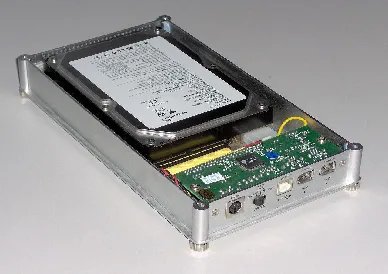
After a machine restart, the external hard drive wasn’t recognized and needed to be remounted. However, after using fdisk -l, the external hard drive was nowhere to be found, making it impossible to mount.
In practice, this kind of problem usually has two steps: first confirm whether Linux can still see the disk device, then decide whether you can mount it directly or need to rescan the bus so the device appears again.
How to Mount a Disk
First, use fdisk -l to check the current hard drive status.
    ➜  ~ fdisk -l
    WARNING: fdisk GPT support is currently new, and therefore in an experimental phase. Use at your own discretion.

    Disk /dev/sdb: 320.1 GB, 320072933376 bytes, 625142448 sectors
    Units = sectors of 1 * 512 = 512 bytes
    Sector size (logical/physical): 512 bytes / 512 bytes
    I/O size (minimum/optimal): 512 bytes / 512 bytes
    Disk label type: gpt
    Disk identifier: AF1B577B-830C-4026-AC5F-37870D362B3C

    #         Start         End    Size  Type            Name
    1          2048      411647    200M  EFI System      EFI System Partition
    2        411648     2508799      1G  Microsoft basic
    3       2508800   625141759  296.9G  Linux LVM

    Disk /dev/mapper/centos-root: 53.7 GB, 53687091200 bytes, 104857600 sectors
    Units = sectors of 1 * 512 = 512 bytes
    Sector size (logical/physical): 512 bytes / 512 bytes
    I/O size (minimum/optimal): 512 bytes / 512 bytes

    Disk /dev/mapper/centos-swap: 3623 MB, 3623878656 bytes, 7077888 sectors
    Units = sectors of 1 * 512 = 512 bytes
    Sector size (logical/physical): 512 bytes / 512 bytes
    I/O size (minimum/optimal): 512 bytes / 512 bytes

    Disk /dev/mapper/centos-home: 261.5 GB, 261468717056 bytes, 510681088 sectors
    Units = sectors of 1 * 512 = 512 bytes
    Sector size (logical/physical): 512 bytes / 512 bytes
    I/O size (minimum/optimal): 512 bytes / 512 bytes

    Disk /dev/sda: 1000.2 GB, 1000170586112 bytes, 1953458176 sectors
    Units = sectors of 1 * 512 = 512 bytes
    Sector size (logical/physical): 512 bytes / 512 bytes
    I/O size (minimum/optimal): 512 bytes / 512 bytes
    Disk label type: dos
    Disk identifier: 0x16f2a91f

          Device Boot      Start        End    Blocks  Id  System
    /dev/sda1             1 4294967295 2147483647+ ee  GPT
Here, my external hard drive is 1TB, so I can identify it as /dev/sda1. Then I can mount it with mount:
    ➜  ~ mkdir ~/60Gaug
    ➜  ~ mount /dev/sda1 ~/60Gaug
    ➜  ~ ll ~/60Gaug
    total 712M
    drwxrwxrwx 1 root root    0 Aug 29 09:35 169306313
    -rwxrwxrwx 1 root root 481M Sep 28 12:24 backup.zip
    drwxrwxrwx 1 root root    0 Sep 21 18:48 djan
    -rwxrwxrwx 1 root root 375K Oct 29 08:42 download
    drwxrwxrwx 1 root root 4.0K Oct 31 18:19 genome
    drwxrwxrwx 1 root root 4.0K Aug 31 08:55 a
    drwxrwxrwx 1 root root 8.0K Oct  8 18:33 jiali
    drwxrwxrwx 1 root root 4.0K Sep 21 13:42
    drwxrwxrwx 1 root root    0 Sep 21 13:31 N1800068
    drwxrwxrwx 1 root root 4.0K Sep 10 15:47 1
    -rwxrwxrwx 1 root root 231M Sep 28 12:31 2.zip
    drwxrwxrwx 1 root root 4.0K Nov 27 14:04 3
If you only want a quick view of current disks and partitions, lsblk is often easier to read than fdisk -l:
lsblk
If the Hard Drive Is Not Recognized
1. Check the Host Bus Number
Use the command:
    ➜  ~ ls /sys/class/scsi_host/
    host2  host3  host4  host8
2. Rescan the SCSI Bus to Add Devices
    ➜  ~ echo "- - -" > /sys/class/scsi_host/host2/scan
    ➜  ~ echo "- - -" > /sys/class/scsi_host/host3/scan
    ➜  ~ echo "- - -" > /sys/class/scsi_host/host4/scan
    ➜  ~ echo "- - -" > /sys/class/scsi_host/host8/scan
Note: Use the corresponding host numbers.
After rescanning, if the device appears when you run fdisk -l or lsblk again, you can use the mount command from the previous section.
How to Confirm the Mount Worked
After mounting, you can verify it with checks like these:
mount | grep 60Gaugto confirm the mount point is activedf -hto confirm the disk capacity appears on the target path
If you want to disconnect the drive safely later, run umount ~/60Gaug before unplugging it.
- 原文作者:春江暮客
- 原文链接:https://www.bobobk.com/en/211.html
- 版权声明:本作品采用 知识共享署名-非商业性使用-禁止演绎 4.0 国际许可协议 进行许可,非商业转载请注明出处(作者,原文链接),商业转载请联系作者获得授权。