Managing Long-Running Tasks on Unix-like Systems
On Linux and other Unix-like systems, if you already know a command will take a long time, you usually start it with nohup, screen, or tmux. The annoying case is when the command is already running in your current shell and only later do you realize it will take much longer than expected.
That is the exact problem this article addresses: how to move an already-running foreground task into the background and keep it alive after leaving the shell.
Managing background jobs on Unix-like systems is an important skill to improve work efficiency. This article will guide you on how to use Ctrl+Z, bg, and disown commands to move running jobs to the background and ensure they continue running after logout.
Main steps:
- Use
Ctrl+Zto pause the job: - Use
bgto move the job to the background: - Use
disownto keep the job running after logout
Two things to keep in mind first
- This approach is best for non-interactive command-line jobs.
- If the task writes a lot of output, redirect stdout and stderr to a file as early as possible.
Use Ctrl+Z to pause the job:
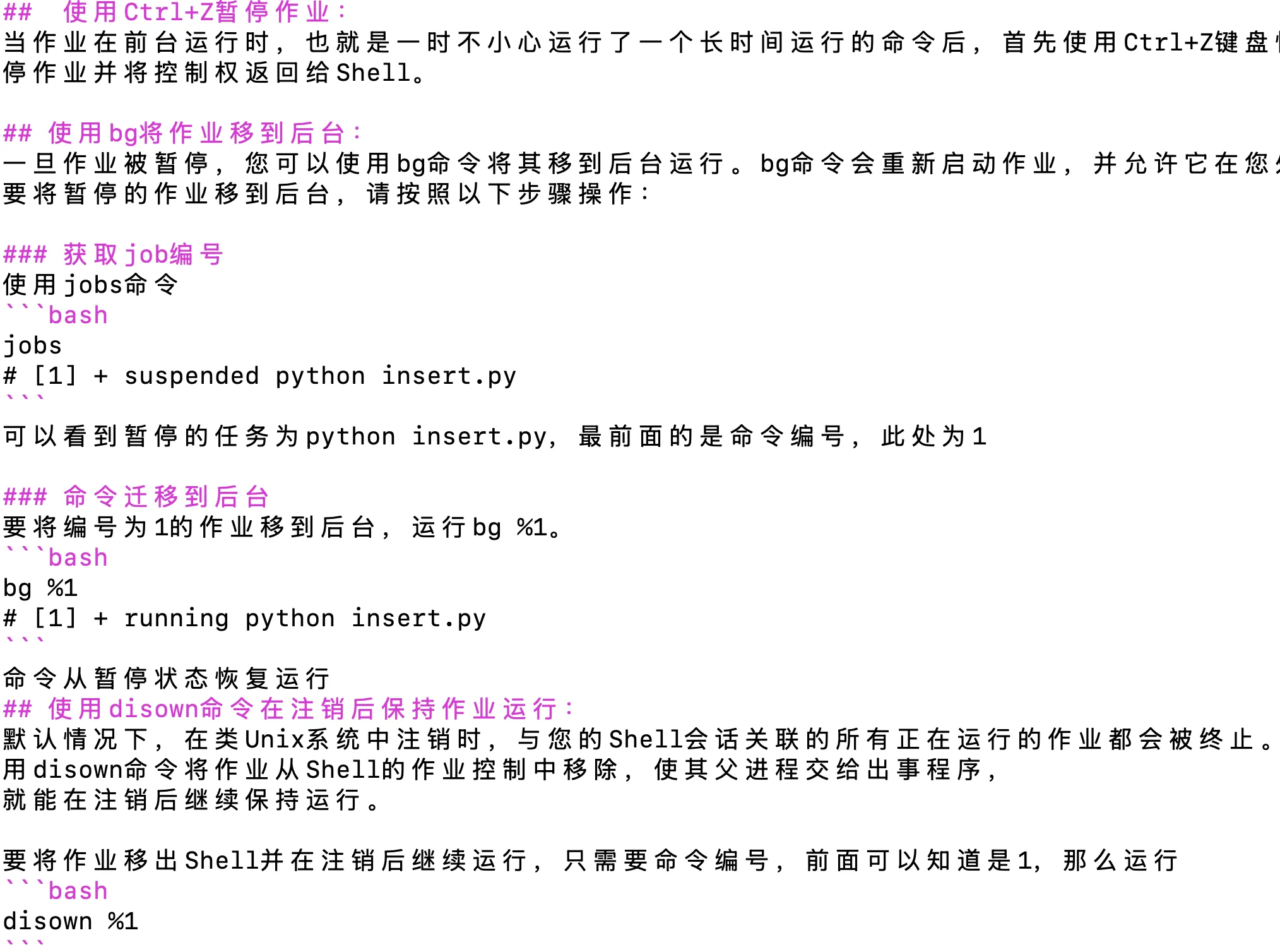
When a job is running in the foreground, for example, accidentally starting a long-running command, first use the keyboard shortcut Ctrl+Z (press and hold both keys simultaneously) to pause it. This will suspend the job and return control to the shell.
Use bg to move the job to the background:
Once the job is suspended, you can use the bg command to move it to run in the background. The bg command will restart the job and allow it to continue running while you work on other tasks.
To move a suspended job to the background, follow these steps:
Get the job number
Use the jobs command
jobs
# [1] + suspended python insert.py
You can see the suspended task is python insert.py, and the number at the front is the job ID, here it is 1.
Move the job to the background
To move the job with ID 1 to the background, run:
bg %1
# [1] + running python insert.py
The command resumes running from the suspended state.
Use disown to keep the job running after logout:
By default, on Unix-like systems, when you log out, all running jobs associated with your shell session will be terminated. However, you can use the disown command to remove a job from the shell’s job control, handing over its parent process to the init system,
so it continues running after logout.
To remove a job from the shell and keep it running after logout, just use the job number (here, 1), then run:
disown %1
This command has no output, but after running jobs again, you will see the job has disappeared, indicating success.
Once a job is removed from the shell, it will continue running even if you log out.
Note, however, that you will no longer be able to control or monitor the job with the shell’s job control features.
A safer practical sequence
If the task is already running and you want the most practical rescue flow, use this order:
- Press
Ctrl+Zto suspend it - Run
bg %1to resume it in the background - Confirm the job is still running
- Then run
disown %1
If the task is important, the better long-term habit is still to launch it in tmux or screen from the start.
How to verify the task is still running
Useful checks include:
jobs
ps -ef | grep insert.py
tail -f your.log
If the task disappears from jobs but is still visible in ps, that usually means disown worked and the task has been detached from your current shell job control.
Common issues
1. The task still stops after logout
Most common causes:
- The program still depends on terminal input or output
- It was not fully detached from shell job control
- The program itself exits when it receives HUP
2. You cannot find the task after disown
That is expected.
After disown, the job is no longer listed by jobs, so use ps, pgrep, or log files to confirm whether it is still alive.
3. Background output keeps flooding the terminal
The simplest fix is to redirect output the next time you launch it:
python insert.py > insert.log 2>&1
Related reading
Conclusion:
Managing background jobs on Unix-like systems is crucial for multitasking and improving work efficiency. By first suspending the job with Ctrl+Z, then moving it to the background with bg, and finally separating it from the shell using disown, you can ensure the job keeps running after logout.
Remember to redirect job output if needed, and consider using tools like screen or tmux for more advanced job management.
- 原文作者:春江暮客
- 原文链接:https://www.bobobk.com/en/861.html
- 版权声明:本作品采用 知识共享署名-非商业性使用-禁止演绎 4.0 国际许可协议 进行许可,非商业转载请注明出处(作者,原文链接),商业转载请联系作者获得授权。