Electron in Practice: Building an M3U8 Video Downloader
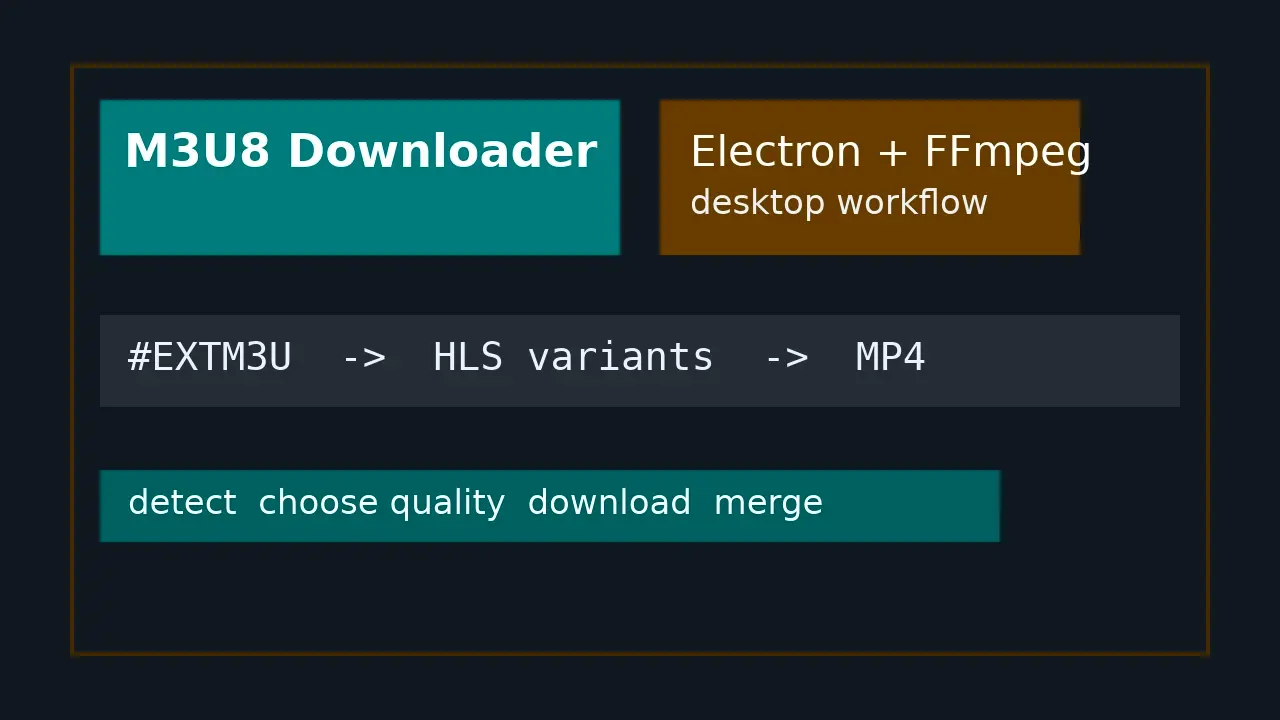
Many web videos are not exposed as one direct MP4 file. They are usually made of HLS segments plus a .m3u8 playlist. The browser streams those segments automatically, but if a user wants to save the video locally, the downloader has to find the playlist first and then merge the segments into a playable file.
The goal of this project is direct: build a desktop M3U8 Downloader. The user enters a web page URL or a .m3u8 URL, the app detects candidate playlists, lets the user choose a quality level, and finally calls FFmpeg to download and merge the stream into MP4.
If you only need the basic M3U8 to MP4 workflow first, start with the previous tutorial: M3U8 to MP4 Tutorial: Download and Convert M3U8 Videos Using Python or Static HTML. This article continues from that workflow and wraps it into a packageable Electron desktop app.
Method 1: Define the Application Boundary First
This tool is not a browser extension or a command-line script. It uses Electron for three practical reasons:
- It needs an interface that normal users can operate directly.
- It needs access to the system file picker so MP4 files can be saved locally.
- It needs a reliable way to call system FFmpeg or a bundled FFmpeg binary.
The core project files are small:
m3u8-downloader/
├── package.json
├── scripts/
│   └── build-all.js
└── src/
    ├── main.js
    ├── preload.js
    ├── renderer.js
    ├── i18n.js
    ├── index.html
    └── styles.css
main.js handles the window, IPC, network parsing, and the FFmpeg child process. preload.js exposes a safe renderer API. renderer.js handles UI state, forms, progress bars, and logs.
Method 2: Build the Minimal Electron Shell
In package.json, point the app entry to src/main.js:
{
  "name": "m3u8-downloader",
  "version": "1.0.0",
  "description": "Electron app for detecting, downloading, and merging HLS/m3u8 streams.",
  "main": "src/main.js",
  "scripts": {
    "start": "electron .",
    "build": "electron-builder"
  }
}
When the main process creates the window, enable contextIsolation and disable nodeIntegration:
const win = new BrowserWindow({
  width: 980,
  height: 720,
  minWidth: 760,
  minHeight: 560,
  title: 'M3U8 Downloader',
  backgroundColor: '#f6f7f9',
  webPreferences: {
    preload: path.join(__dirname, 'preload.js'),
    contextIsolation: true,
    nodeIntegration: false,
  },
});
With this setup, the renderer cannot directly access Node.js APIs. Downloading, choosing files, and launching FFmpeg must go through the allowlisted API exposed by preload.
Method 3: Design a Safe IPC Interface
preload.js only exposes the capabilities the app actually needs:
contextBridge.exposeInMainWorld('m3u8App', {
  getLocale: () => ipcRenderer.invoke('get-locale'),
  getFfmpegStatus: () => ipcRenderer.invoke('get-ffmpeg-status'),
  analyzeUrl: (payload) => ipcRenderer.invoke('analyze-url', payload),
  chooseOutput: (payload) => ipcRenderer.invoke('choose-output', payload),
  startDownload: (payload) => ipcRenderer.invoke('start-download', payload),
  cancelDownload: () => ipcRenderer.invoke('cancel-download'),
  onProgress: (callback) => {
    const listener = (_event, data) => callback(data);
    ipcRenderer.on('download-progress', listener);
    return () => ipcRenderer.removeListener('download-progress', listener);
  },
});
The UI layer does not need to know where FFmpeg is installed, and it does not need direct access to child_process. It sends user input to the main process and updates the interface from returned data.
Method 4: Support Both Web Page URLs and M3U8 URLs
Users may enter two kinds of URLs:
- A direct
.m3u8playlist URL. - A normal web page URL where the
.m3u8address is hidden in HTML or scripts.
The parsing flow has two steps. First, request the input URL and check whether the returned content is a playlist:
function isM3u8Text(text) {
  const sample = String(text || '').slice(0, 2048);
  return sample.includes('#EXTM3U') && /#EXT-X-|#EXTINF/i.test(sample);
}
If the input itself is a playlist, analyze it directly. Otherwise, extract candidate addresses from the page content:
const patterns = [
  /https?:\/\/[^\s"'<>\\]+?\.m3u8(?:\?[^\s"'<>\\]*)?/gi,
  /(?:src|href|url)\s*[:=]\s*["']([^"']+?\.m3u8(?:\?[^"']*)?)["']/gi,
  /["']([^"']+?\.m3u8(?:\?[^"']*)?)["']/gi,
];
Real web pages often escape URLs, so normalize common forms before matching:
const normalized = String(sourceText || '')
  .replace(/\\u002f/gi, '/')
  .replace(/\\\//g, '/')
  .replace(/&/g, '&')
  .replace(///gi, '/')
  .replace(///g, '/');
This small step is useful in practice. Many cases where the page “has an m3u8 but the regex cannot find it” are caused by escaped URL text.
Method 5: Parse Master Playlist Quality Options
HLS usually has two playlist types:
- media playlist: directly lists video segments.
- master playlist: lists child playlists for different resolutions, bitrates, or codecs.
A master playlist often contains lines like this:
#EXT-X-STREAM-INF:BANDWIDTH=3000000,RESOLUTION=1920x1080,CODECS="avc1.640028,mp4a.40.2"
1080p/index.m3u8
The app parses attributes after #EXT-X-STREAM-INF, then converts the next URI into an absolute URL:
variants.push({
  url: new URL(uri, playlistUrl).href,
  label: labelParts.join(' | ') || `Variant ${variants.length + 1}`,
  bandwidth,
  resolution,
  codecs: attrs.CODECS || '',
});
Finally, sort variants by bandwidth from high to low. When users open the dropdown, they usually see the highest bitrate stream first.
Method 6: Keep a Manual Entry for Request Headers
Many video sites validate User-Agent, Referer, or Cookie. If the downloader requests .m3u8 without those headers, it can easily hit 403 errors.
The project starts with a default header set:
const DEFAULT_HEADERS = {
  'User-Agent':
    'Mozilla/5.0 (Macintosh; Intel Mac OS X 10_15_7) AppleWebKit/537.36 (KHTML, like Gecko) Chrome/148.0.0.0 Safari/537.36',
  Accept: '*/*',
};
The UI also provides a “Request headers” input box where users can add lines manually:
Cookie: session=...
Referer: https://example.com/video
The main process parses those lines into an object and passes the headers to both page requests and FFmpeg. This makes protected video sources easier to debug without changing code.
Method 7: Use FFmpeg to Download and Merge
Parsing is only the first step. Saving MP4 is still handled by FFmpeg. Before download starts, the app searches for the executable in this order:
- Read the
FFMPEG_PATHenvironment variable. - Try the optional
ffmpeg-staticdependency. - Check common system paths.
- Fall back to
command -v ffmpegor Windowswhere ffmpeg.
The key FFmpeg arguments look like this:
const args = [
  '-hide_banner',
  '-y',
  '-headers',
  ffmpegHeaders(headers),
  '-user_agent',
  headers['User-Agent'] || DEFAULT_HEADERS['User-Agent'],
  '-allowed_extensions',
  'ALL',
  '-protocol_whitelist',
  'file,http,https,tcp,tls,crypto',
  '-i',
  inputUrl,
  '-map',
  '0:v?',
  '-map',
  '0:a?',
  '-c',
  'copy',
  '-movflags',
  '+faststart',
  outputPath,
];
This does not re-encode the video. It uses -c copy to remux the stream into MP4, which is faster and avoids quality loss. +faststart moves MP4 metadata to the front, so playback can start sooner after the file is ready.
Method 8: Parse Progress from FFmpeg stderr
FFmpeg prints progress to stderr by default. The app probes the total duration first, then extracts time, speed, and size from download log lines:
function parseFfmpegProgress(line, duration) {
  const timeMatch = line.match(/time=(\d+:\d+:\d+(?:\.\d+)?)/);
  const speedMatch = line.match(/speed=\s*([0-9.]+x)/);
  const sizeMatch = line.match(/size=\s*([0-9A-Za-z.]+)\s*/);
  const time = timeMatch ? parseTimeToSeconds(timeMatch[1]) : null;
  const percent = time && duration ? Math.min(99.5, (time / duration) * 100) : null;

  return {
    percent,
    time: timeMatch ? timeMatch[1] : null,
    speed: speedMatch ? speedMatch[1] : null,
    size: sizeMatch ? sizeMatch[1] : null,
  };
}
The main process sends progress to the renderer through the download-progress event, and the UI updates the progress bar and status text.
Method 9: Cancellation Must Manage Child Processes
The download task may be probing metadata or writing the final file. To make the cancel button effective, the project stores one job per window:
const jobs = new Map();
Each job records all child processes:
const job = {
  cancelled: false,
  children: new Set(),
  reject: null,
};
On cancellation, send SIGTERM first. If the process does not exit in time, send SIGKILL after a delay:
for (const child of job.children) {
  killProcess(child, 'SIGTERM');
  setTimeout(() => killProcess(child, 'SIGKILL'), 1500).unref?.();
}
This step matters in a desktop downloader. Otherwise, the UI may look stopped while FFmpeg is still downloading in the background.
Method 10: Add Lightweight i18n
This project does not need a complex i18n framework. It keeps three sets of text in src/i18n.js:
- English
- Simplified Chinese
- Traditional Chinese
The main process reads the system language through app.getLocale() and normalizes it:
function supportedLocale(locale) {
  const normalized = String(locale || '').toLowerCase();
  if (normalized.startsWith('zh-hant') || normalized.includes('tw') || normalized.includes('hk')) {
    return 'zh-TW';
  }
  if (normalized.startsWith('zh')) return 'zh-CN';
  return 'en';
}
The renderer stores the user’s choice and supports both “follow system” and manual switching. For a small utility app, this approach is direct and easy to extend.
Method 11: Package macOS, Windows, and Debian Builds
electron-builder generates macOS, Windows, and Debian packages:
{
  "build": {
    "appId": "com.m3u8.downloader",
    "productName": "M3U8 Downloader",
    "directories": {
      "output": "dist"
    },
    "mac": {
      "target": ["dmg", "zip"],
      "category": "public.app-category.video"
    },
    "win": {
      "target": ["nsis", "portable"]
    },
    "linux": {
      "target": ["deb"],
      "category": "AudioVideo"
    },
    "deb": {
      "depends": ["ffmpeg"]
    }
  }
}
To avoid typing multiple commands, add scripts/build-all.js:
const targets = [
  ['macOS', ['run', 'build:mac']],
  ['Windows', ['run', 'build:win', '--', '--x64']],
  ['Debian', ['run', 'build:debian']],
];
Use this during development:
npm start
Use this when packaging:
npm run build:all
Download the Packaged App
The build program has generated ready-to-use desktop installers and placed them in the site static directory. After the Hugo site is published, the files can be downloaded directly:
- Windows: Download m3u8.exe
- macOS: Download m3u8.dmg
The Windows package is about 109 MB, and the macOS DMG is about 131 MB. If the browser warns that the file is not commonly downloaded, keep the installer only when it comes from this site and verify it with your normal security tool before running it.
Method 12: Development Choices Worth Keeping
The app is not complex, but several choices are worth keeping:
- Let FFmpeg handle download and merge instead of manually downloading and concatenating TS segments.
- Keep the renderer responsible only for UI, with all system capabilities behind IPC.
- Use manual request headers because they are easier to debug than trying to fully mimic a browser.
- Parse only the useful part of master playlists instead of implementing the full HLS specification.
- Derive progress from FFmpeg output, which is enough for most video download workflows.
For future iterations, I would prioritize three improvements:
- Add a queue for downloading multiple videos one by one.
- Save recently used request headers and output directories.
- Add parser unit tests for escaped URLs, base64 fragments, and master playlists.
Validation: Local Run and Package Check
During development, first confirm that Electron can open the main window:
npm install
npm start
After entering an accessible .m3u8 URL, check at least three things:
- The app detects a media playlist or quality options from a master playlist.
- After choosing an output path, FFmpeg starts writing the MP4 file.
- The cancel button stops the current FFmpeg child process.
Before packaging, run the build command:
npm run build:all
If you only need to test the current platform, run a single platform build script first instead of generating every installer.
Common Errors and Fixes
1. FFmpeg cannot be found
The usual cause is that ffmpeg is not installed, or the app cannot locate the executable.
Fix:
- Run
ffmpeg -versionin the terminal. - If the command does not exist, install system FFmpeg.
- If FFmpeg is installed but the app cannot find it, set
FFMPEG_PATHto the full executable path.
2. URL analysis returns 403
The usual cause is source-side validation for Referer, User-Agent, or Cookie.
Fix:
- Add the real page
Refererin the Request headers input. - Add the Cookie copied from the browser when needed.
- Confirm the
.m3u8URL has not expired.
3. The downloaded MP4 does not play
The usual cause is incomplete segment download or encrypted HLS.
Fix:
- Open the log and check for
403,404, orInvalid data. - Test the app with a shorter stream to confirm the workflow.
- If the playlist contains
#EXT-X-KEY, confirm that FFmpeg can access the key URL.
Related Reading
Summary
The core of M3U8 Downloader is not building a complex video player. It is about making the HLS download chain clear: find .m3u8, detect quality options, pass request headers to FFmpeg, listen for progress, allow cancellation, and generate a playable MP4.
Electron fits this kind of utility app well. The UI is quick to build, and the main process can reliably call native capabilities. As long as the boundary between main and renderer is clear, the project can stay small while still covering everyday M3U8 download needs.
- 原文作者:春江暮客
- 原文链接:https://www.bobobk.com/en/electron-m3u8-downloader-development.html
- 版权声明:本作品采用 知识共享署名-非商业性使用-禁止演绎 4.0 国际许可协议 进行许可,非商业转载请注明出处(作者,原文链接),商业转载请联系作者获得授权。