Mounting Oracle Object Storage using s3fs-fuse
My previous article, “Getting Free Oracle Cloud Servers and Automating Deployment with Scripts,” explained how to use the CLI to acquire free Oracle Cloud machines. Besides the default disk allocation, Oracle Free Tier also provides object storage, and s3fs-fuse lets you mount that storage into a local Linux directory.
This is especially useful for migration files, backups, or data that you may want to detach from one instance and remount on another later.
Here are the steps we’ll cover:
- Enable and activate Object Storage
- View your namespace and region
- Configure Object Storage credentials (access key, ID)
- Mount Object Storage locally
Install s3fs-fuse
If s3fs is not installed yet, install it first. On Debian or Ubuntu, the package is usually available directly:
apt update
apt install s3fs -y
1. Enable and Activate Object Storage
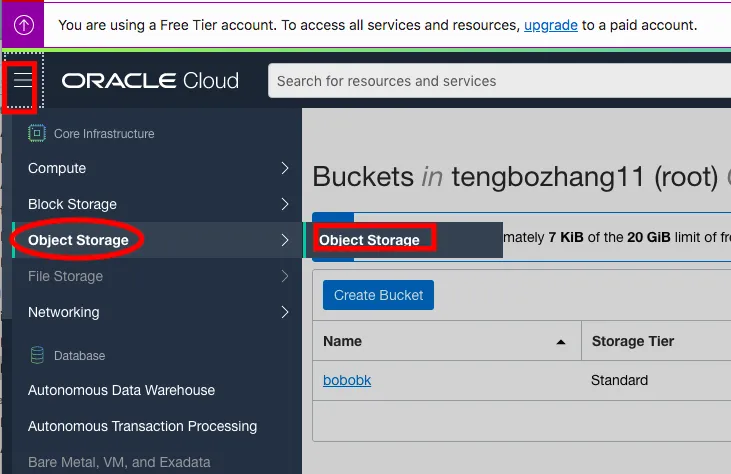
Log in to your Oracle account. In the left navigation bar, find and click on Object Storage.
Create a new bucket and name it bobobk.
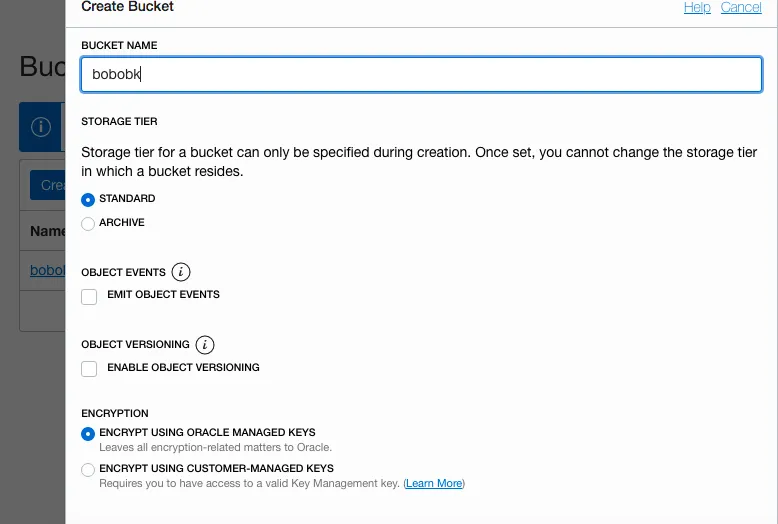
Since Oracle’s free tier provides a total of 20GB of storage, one bucket is usually sufficient.
2. View Your Namespace and Region
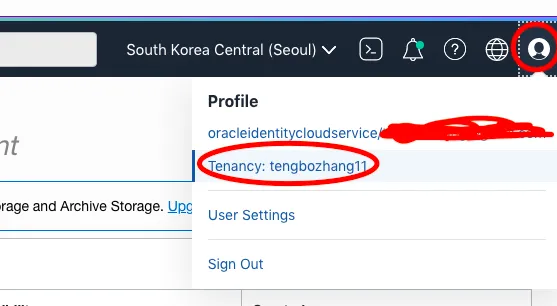
This step is crucial for obtaining the configuration information needed for mounting. You’ll need two pieces of information: your namespace and your home region.
Viewing Your Namespace
First, click on your profile icon in the top right corner and then click View Tenancy Information.
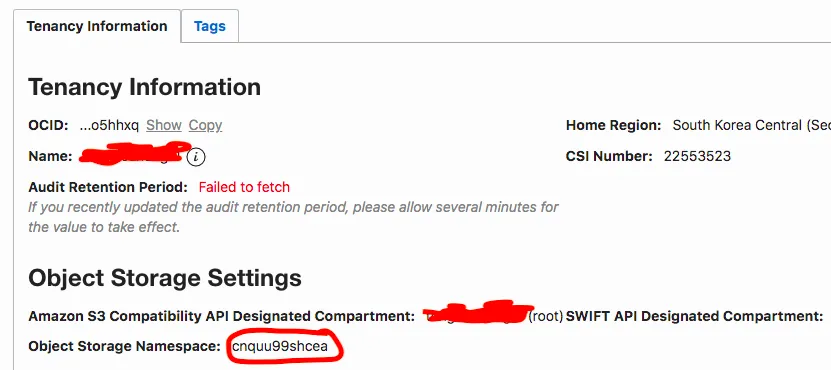
At the top, you’ll see “Object Storage Settings.” The Object Storage Namespace listed there is your namespace. For example, my namespace is cnquu99shcea.
Viewing Your Account Region Identifier
On the left side of the account information page, you’ll see your region information, but it’s in text form. You need to find the corresponding Region Identifier.
View your region:

You can see my region is Seoul, South Korea. Now, go to the official Oracle documentation to find the Region Identifier for this region.
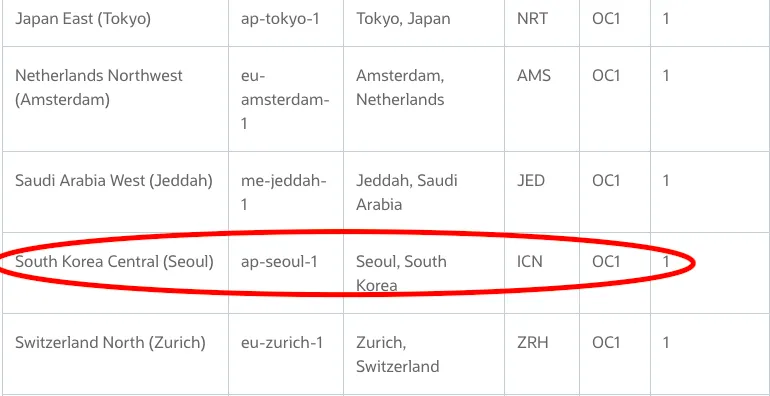
For Seoul, South Korea, the identifier is ap-seoul-1.
3. Configure Object Storage Credentials (Access Key, ID)
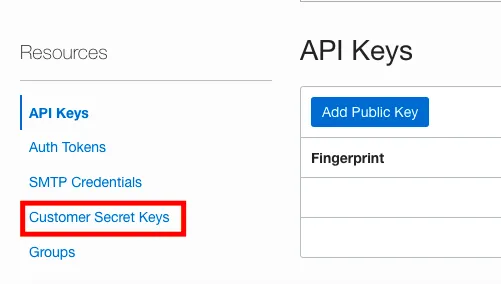
In this step, you’ll generate a user secret key in the Oracle console to access your object storage files. Find Customer Secret Keys in your user settings and generate a key.
First, open the user settings page. It’s in the same top-right corner as the tenancy information, just below it.
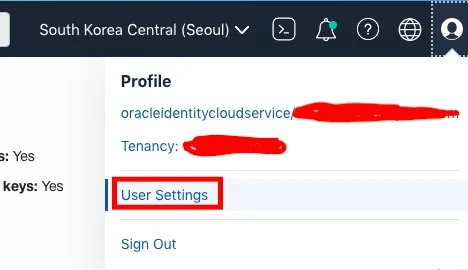
Navigate to the Customer secret keys section.
Generate a new key.
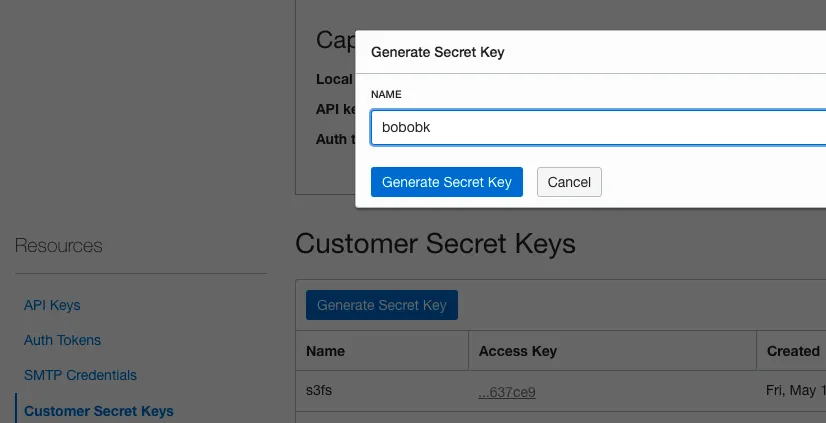
Record the key value. This key will only be displayed once. If you don’t copy it now, you’ll have to generate a new one.
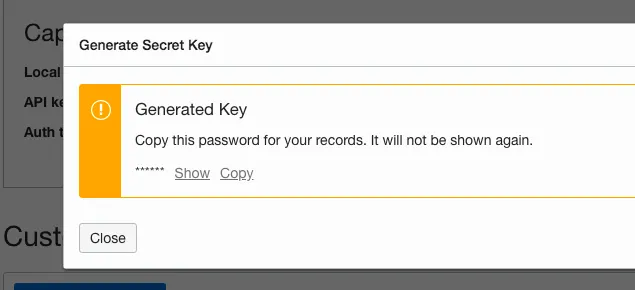
Next, view the key ID. Click on the bobobk key you just created, and you can directly copy its ID.
Now, create a configuration file named .passwd-s3fs in your home directory. The format should be id:key. Do not publish your real values in scripts or screenshots; replace them locally with your own credentials:
echo "your_access_key_id:your_secret_key" > ~/.passwd-s3fs
chmod 600 ~/.passwd-s3fs
Your object storage credentials are now configured.
4. Mount Object Storage Locally
Now, let’s mount the object storage. The command format is as follows:
s3fs [bucket] [destination directory] -o endpoint=[region] -o passwd_file=~/.passwd-s3fs -o url=https://[namespace].compat.objectstorage.[region].oraclecloud.com/ -onomultipart -o use_path_request_style
For my example, the actual command looks like this:
mkdir object
s3fs bobobk object -o endpoint=ap-seoul-1 -o url=https://cnquu99shcea.compat.objectstorage.ap-seoul-1.oraclecloud.com/ -o passwd_file=~/.passwd-s3fs -onomultipart -o use_path_request_style
Where:
- bucket is your storage bucket name (e.g., bobobk).
- destination directory is the target folder for mounting. Here, we create a new folder named object.
- region is your account’s home region (e.g., ap-seoul-1), as identified earlier.
- namespace is your object storage namespace (e.g., cnquu99shcea), as identified earlier.
If the command runs without errors, you can check whether the mount works and whether writes are visible by:
cd object

echo "object success by chunjiangmuke tutorial([www.bobobk.com](https://www.bobobk.com))" > 1
ls -lah
You should now see the file named 1 synchronized in your storage bucket within the Oracle Cloud console.
Summary
This article showed how to map Oracle Object Storage to a local folder with s3fs-fuse. The practical value is not only extra storage capacity, but also the ability to keep migration or backup data outside a single instance and remount it when needed.
If mounting fails, check these four items first: the namespace, the region identifier, the id:key format in ~/.passwd-s3fs, and whether the file permissions were restricted with chmod 600.
- 原文作者:春江暮客
- 原文链接:https://www.bobobk.com/en/724.html
- 版权声明:本作品采用 知识共享署名-非商业性使用-禁止演绎 4.0 国际许可协议 进行许可,非商业转载请注明出处(作者,原文链接),商业转载请联系作者获得授权。