2026 Practical Guide: Build Your First MCP Server with Python
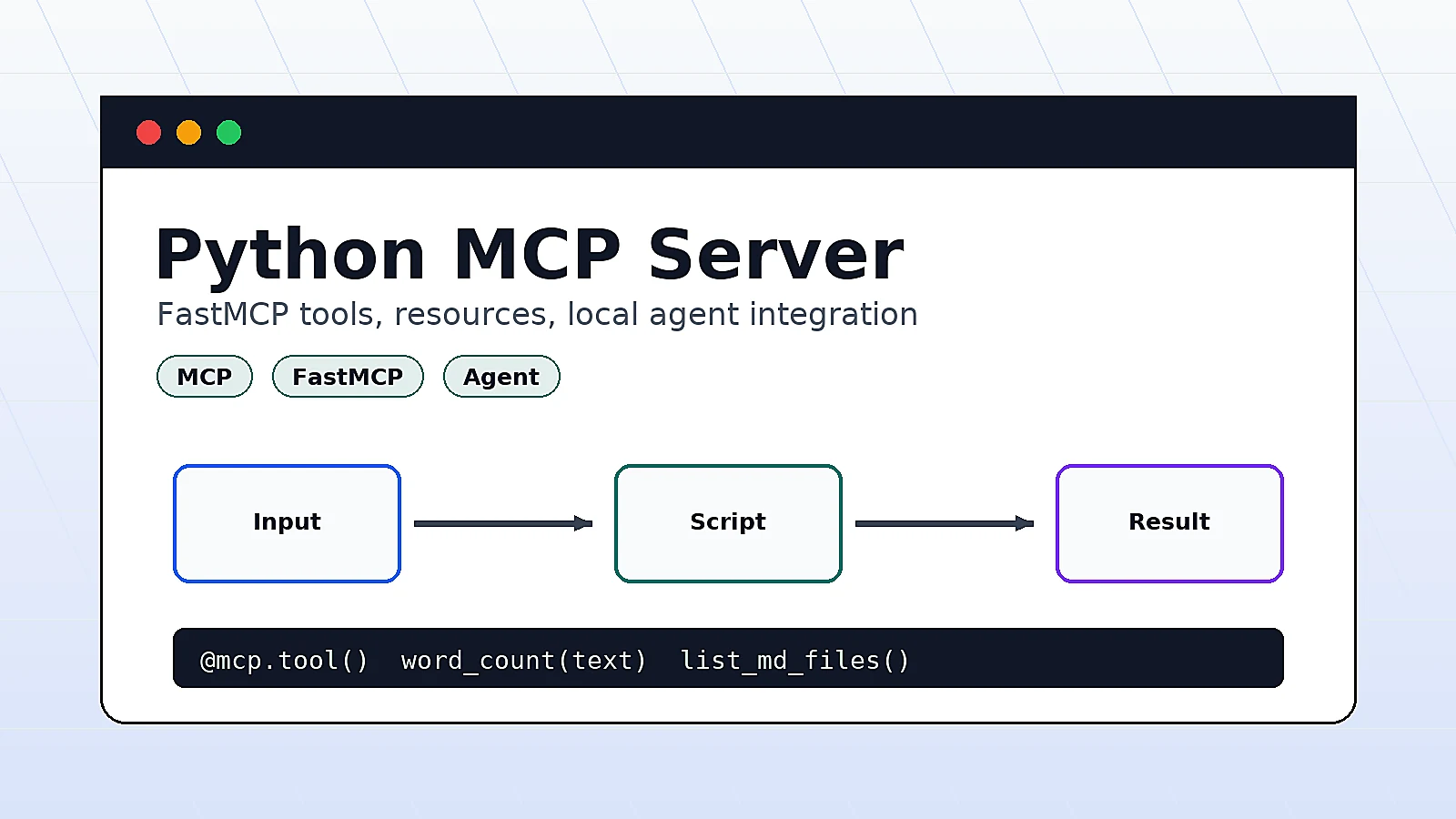
As AI agents become more common, a practical problem appears quickly: a model should not only chat, it should safely call your local scripts, project files, databases, or internal APIs.
MCP, short for Model Context Protocol, is designed for this exact workflow. It standardizes how models connect to tools and context. This article keeps the theory light and focuses on one goal: build a Python MCP Server that runs locally, can be debugged, and can be connected to a client.
By the end, you will have:
- A local
server.py - Two tools that an AI client can call
- One readable resource
- A practical validation and troubleshooting flow
When MCP is worth learning first
MCP is worth trying early if you are doing any of these:
- Letting an AI assistant read Markdown, logs, or config files in a project
- Wrapping existing Python scripts as AI-callable tools
- Reusing the same local capabilities across multiple AI clients
- Building agent workflows for development, operations, or content automation
The best first step is not designing a large platform. Start by exposing one local tool and confirming that a client can call it.
Method 1: Create a local stdio MCP Server
stdio is one of the most common ways to run a local MCP Server. The client starts your script, then communicates through standard input and standard output. It works well for local files, command-line tools, and development environment integrations.
1. Prepare the environment
Using uv is the easiest way to manage the Python project. If you already have uv, run:
mkdir mcp-local-tools
cd mcp-local-tools
uv init
uv add "mcp[cli]"
If you prefer pip, use a virtual environment:
python3 -m venv .venv
source .venv/bin/activate
pip install "mcp[cli]"
Verify that the command is available:
uv run mcp --help
If you can see subcommands such as dev and install, the development tools are ready.
2. Write server.py
Create server.py:
from __future__ import annotations

from datetime import datetime
from pathlib import Path

from mcp.server.fastmcp import FastMCP


mcp = FastMCP("Local Tools")
PROJECT_ROOT = Path.cwd().resolve()


@mcp.tool()
def word_count(text: str) -> dict[str, int]:
    """Count characters, words, and lines in a text block."""
    words = [word for word in text.split() if word]
    return {
        "characters": len(text),
        "words": len(words),
        "lines": len(text.splitlines()),
    }


@mcp.tool()
def list_md_files(directory: str = ".") -> list[str]:
    """List Markdown files under the project directory."""
    target = (PROJECT_ROOT / directory).resolve()

    if target != PROJECT_ROOT and PROJECT_ROOT not in target.parents:
        raise ValueError("directory must stay inside the project")

    if not target.exists() or not target.is_dir():
        raise ValueError("directory does not exist or is not a directory")

    files = sorted(target.rglob("*.md"))
    return [str(path.relative_to(PROJECT_ROOT)) for path in files[:50]]


@mcp.resource("time://now")
def current_time() -> str:
    """Return current local time."""
    return datetime.now().isoformat(timespec="seconds")


if __name__ == "__main__":
    mcp.run()
This example stays intentionally small:
word_counttests normal text argumentslist_md_filestests local project file accesstime://nowtests an MCP resource
list_md_files includes a directory boundary so the client cannot freely read files outside the project. In a real project, apply the same kind of boundary before exposing databases, private directories, or production APIs.
Method 2: Debug with MCP Inspector
An MCP Server is not a normal web service. If you run it directly, it often waits for a client over stdio. For debugging, start with the official development tool:
uv run mcp dev server.py
It should start MCP Inspector. In the page, check:
- The server connects successfully
word_countandlist_md_filesappear in the tools listtime://nowappears in the resources list- Tool calls return the expected values
Test word_count with this input:
{
  "text": "hello MCP\nhello Python"
}
The expected response should look like:
{
  "characters": 22,
  "words": 4,
  "lines": 2
}
Then test list_md_files:
{
  "directory": "."
}
If the current directory has Markdown files, the response may look like:
[
  "README.md",
  "docs/usage.md"
]
Connect an MCP-compatible client
After debugging works, configure this server in an AI client that supports MCP. Different clients expose different settings, but the core values are usually:
- Command:
uv - Arguments: enter the project directory and run
python server.py - Working directory: the absolute path to
mcp-local-tools
A generic JSON configuration looks like this:
{
  "mcpServers": {
    "local-tools": {
      "command": "uv",
      "args": [
        "--directory",
        "/absolute/path/mcp-local-tools",
        "run",
        "python",
        "server.py"
      ]
    }
  }
}
Replace /absolute/path/mcp-local-tools with your real path. For example:
pwd
If your client supports installing a local MCP Server directly, you can also try:
uv run mcp install server.py --name "Local Tools"
After installing, restart the client and ask the AI to call word_count or list_md_files.
Validation checklist
Before connecting the server to a daily-use client, check it in this order:
# 1. Check Python syntax
uv run python -m py_compile server.py

# 2. Check MCP CLI availability
uv run mcp --help

# 3. Start Inspector for debugging
uv run mcp dev server.py
If all three pass, client integration is much easier to troubleshoot.
Troubleshooting
1. mcp command not found
The dependency is usually missing from the current project. Run:
uv add "mcp[cli]"
uv run mcp --help
If you use pip, confirm that the virtual environment is active:
source .venv/bin/activate
python -m pip show mcp
2. Running server.py prints nothing
That is normal. A stdio MCP Server waits for a client connection. It is not a web server that prints an HTTP address.
Use Inspector for debugging:
uv run mcp dev server.py
3. The client connects but tools are missing
Check these three things first:
server.pyuses the@mcp.tool()decorator- The client configuration uses an absolute project path
- The client was restarted after changing MCP configuration
You can also run a syntax check first:
uv run python -m py_compile server.py
4. File access fails with a permission error
The example only allows reading Markdown files inside the project directory. If you pass ../ or a system directory, it is rejected on purpose.
Do not open full-disk access by default. Use an explicit allowed directory instead:
ALLOWED_ROOT = Path("/home/user/my-project").resolve()
Then check every file operation against ALLOWED_ROOT.
References
- Model Context Protocol documentation:
https://modelcontextprotocol.io/docs - MCP Python SDK:
https://github.com/modelcontextprotocol/python-sdk
Summary
MCP is useful because it turns AI tool access into a reusable interface. For individual developers and site owners, the most practical starting point is wrapping existing Python scripts, content folders, and automation commands as an MCP Server.
Start with a small tool like the one in this tutorial: make it runnable, keep permissions bounded, and confirm that a client can call it. Once that loop works, adding databases, search, deployment scripts, or content management tools becomes much easier to control.
- 原文作者:春江暮客
- 原文链接:https://www.bobobk.com/en/python-mcp-server-quickstart.html
- 版权声明:本作品采用 知识共享署名-非商业性使用-禁止演绎 4.0 国际许可协议 进行许可,非商业转载请注明出处(作者,原文链接),商业转载请联系作者获得授权。
相关文章
- boxes: An Interesting Command-Line String Shaping Tool
- 2026 Webmaster Playbook: Automate llms.txt for AI Search with Python
- Build Your Own Solana Wallet Toolkit (Batch Address Generation / SOL and USDT Transfer)
- Build Your Own TRON Wallet Toolkit (Batch Address Generation / USDT Transfer / Staking & Voting)
- Python: Creating Beautiful Lollipop Charts